The Best Way to Back Up Your Phone Without Losing Anything
iCloud and Google backups skip more than you'd think. How to back up an iPhone or Android phone properly, including photos, chats and account recovery.
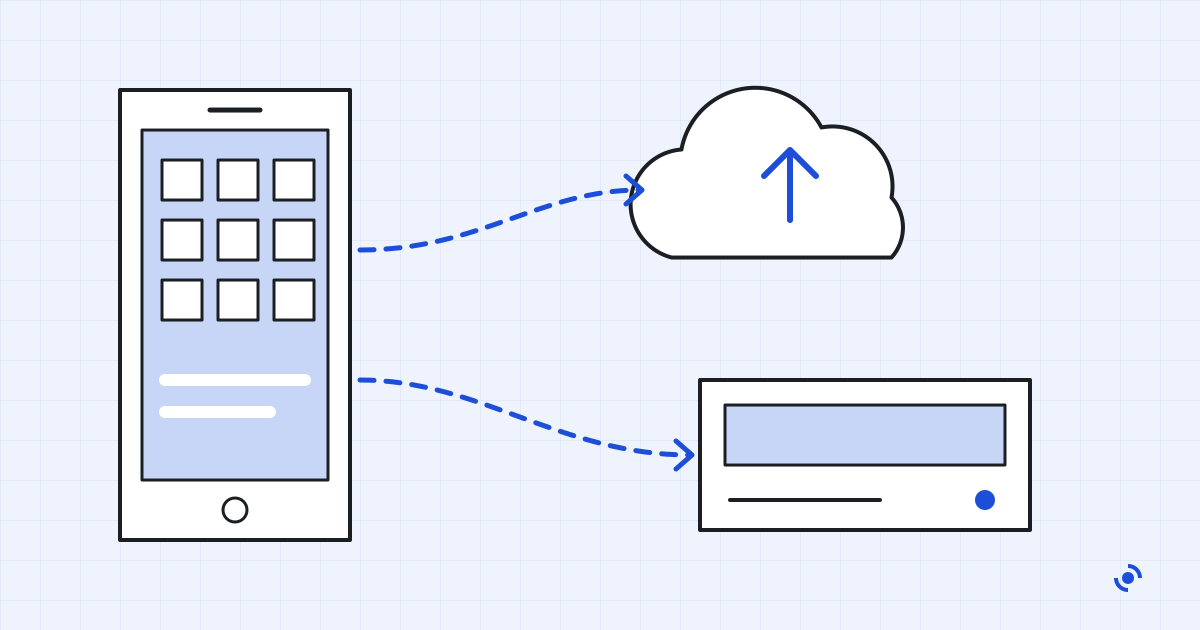
The best way to back up a phone is to keep two copies: the automatic cloud backup that's built into iOS and Android, switched on and checked, and a second copy on a computer or drive you own. Then make sure your photos and chat apps are really included, because the default backup often leaves them out.
Most people think they're covered already. In a 2024 Harris Poll survey for the backup company Backblaze, only 15% of US computer owners were absolutely certain their important files were backed up. There's little reason to think phone owners are better organized.
A phone backup is really three backups
When people lose data after a phone dies, it's rarely because they had no backup. It's because they had one that didn't contain what they expected. On both iPhone and Android, your data lives in three places that are backed up in different ways:
- The phone itself: settings, app data, your Home Screen, text messages. This is what "phone backup" usually means.
- Photos and videos, which are usually handled by a separate photo service.
- Chat apps like WhatsApp, which keep their own backups under their own settings.
Get all three right and a lost phone becomes an afternoon of setup rather than a disaster.
| Backup | Covers | Doesn't cover | Free storage | Watch out for |
|---|---|---|---|---|
| iCloud Backup (iPhone) | Settings, Home Screen, app data, messages and photos not already synced to iCloud | Anything already in iCloud, such as iCloud Photos and Messages in iCloud (stored separately) | 5 GB | 5 GB fills up quickly; backups only run on Wi-Fi, on power, with the screen locked |
| Encrypted computer backup (iPhone) | Everything in a normal backup, plus saved passwords, Health data, call history and Wi-Fi settings | Face ID, Touch ID and your passcode | Your computer's disk | Forget the backup password and the backup can't be recovered |
| Backup by Google (Android) | Apps and app data, call history, contacts, device settings, SMS and MMS | Photos and videos, unless Google Photos backup is on | 15 GB, shared with Gmail, Drive and Photos | Erased if you don't use the device for 57 days (except photos and videos) |
| Samsung Cloud (Galaxy) | Call logs, messages, contacts, calendar, settings, Home screen, app data | Photos and videos (Gallery syncs with OneDrive instead) | Check your Samsung account | Deleted after 12 months unused; not available on Verizon devices |
From Apple, Google and Samsung support pages, checked September 24, 2026.
Backing up an iPhone
iCloud Backup
Go to Settings, tap your name, then iCloud, then iCloud Backup, and turn on Back Up This iPhone. From then on, your phone backs itself up when it's charging, on Wi-Fi and locked, which for most people means overnight.
The detail that catches people out is what the backup leaves out. Apple is clear that iCloud Backup covers only data that isn't already synced to iCloud. If iCloud Photos is on, your photos aren't in the backup; they're in iCloud Photos. The same goes for Messages in iCloud, notes and iCloud Drive. That's fine as long as those services are switched on. It's a problem if you turned iCloud Photos off to save space and assumed the backup would catch your pictures.
Space is the other catch. Every Apple account gets 5 GB free, which fills up quickly once photos and app data are involved. The iCloud+ plans start at $0.99 a month for 50 GB, with 200 GB at $2.99 and 2 TB at $9.99. When the storage is full, backups simply stop.
A second copy on your computer
Once a month, or before any big update or repair, plug your iPhone into a computer. On a Mac, open Finder and select the phone in the sidebar; on Windows, use Apple's Apple Devices app. Tick Encrypt local backup before you click Back Up Now.
Encryption isn't just about security. An encrypted backup also stores things a normal one skips: saved passwords, Health data, call history and Wi-Fi settings. Choose a password you'll keep somewhere safe, because Apple can't recover it for you.
Advanced Data Protection
Standard iCloud storage is encrypted, but Apple holds the keys for some categories, including backups. Advanced Data Protection changes that, extending end-to-end encryption to iCloud Backup, iCloud Drive, Photos, Notes and several other categories. Only your devices can then decrypt them.
It's worth turning on if you're comfortable managing your own recovery, because Apple can no longer help you get back in. You'll be asked to set up a recovery contact or recovery key first. In the UK, Apple no longer offers the feature to new users.
Backing up an Android phone
Backup by Google
On most Android phones, go to Settings, then Google, then All services, then Backup and restore, and turn on Backup. It saves apps and app data, call history, contacts, device settings and text messages. Some of it is also encrypted with your phone's screen lock.
Two limits to know. The backup counts against your Google account's 15 GB of free storage, which is shared with Gmail, Drive and Photos. And if you stop using a phone for a while, Google erases its backup after 57 days, except for photos and videos. If a phone is broken and sitting in a drawer, restore from it well before then.
Photos
Photos and videos aren't part of the device backup. They're handled by Google Photos, which you switch on in the app. You can upload at original quality or at Storage saver quality, which reduces photos above 16 megapixels to 16 megapixels and videos to 1080p. Both count against your storage.
Samsung Galaxy phones
Samsung adds its own service. Samsung Cloud backs up call logs, messages, contacts, calendar, settings and app data, but not photos or videos, which sync with Microsoft OneDrive from the Gallery app instead. Samsung Cloud isn't available on Verizon devices, and data unused for more than 12 months is deleted. Most Galaxy owners are better served by Google's backup plus Google Photos, with Samsung Cloud as a bonus.
Chats have their own backup
WhatsApp and similar apps keep conversations outside the normal phone backup. WhatsApp stores its chat backup in iCloud on an iPhone and in your Google account on Android, where it now counts against your Google storage. Open WhatsApp's settings, go to the chat backup page, check the date of the last backup, and consider turning on its end-to-end encrypted backup option.
Do the same for any other app that holds something you'd hate to lose: authenticator apps, voice memo apps, notes apps that don't sync.
The 3-2-1 rule, for a phone
Backup specialists often recommend the 3-2-1 rule: three copies of your data, on two different media, with one copy off-site. For a phone that's easier than it sounds. The phone itself is copy one. The cloud backup is copy two, and it's off-site. The computer backup is copy three, on a different medium.
Why bother with the third? Because cloud backups fail in ways people don't expect. Storage fills up and backups quietly stop. A photo deleted by mistake is deleted everywhere once it syncs. An account gets locked. A copy on your own drive is immune to all of that.
For photos specifically, it's worth exporting them to a computer a few times a year. Apple explains how to import iPhone photos to a Windows PC, and Google's Takeout service lets you download your whole Google Photos library as archive files.
Don't lock yourself out of your own backup
A cloud backup is only useful if you can sign in to the account it belongs to, often from a new phone, sometimes after the old one was stolen along with your two-factor codes.
Take five minutes now. On an iPhone, add a recovery contact under Settings, your name, Sign-In & Security: a trusted person who can help you regain access. On Android, check your Google account's recovery phone and email, and add recovery contacts as well. If you set up an Apple recovery key instead, store it on paper somewhere safe. Apple warns that if you lose the key, you can be locked out permanently.
Then, once a month, open your backup settings and look at the date of the last successful backup. If it's older than a few days, find out why.
Questions readers ask
How much iCloud storage do I need for backups?
The free 5 GB rarely covers a full iPhone backup plus photos. For most people the 50 GB or 200 GB iCloud+ plans are enough, at $0.99 and $2.99 a month in the US.
Does backing up to the cloud include my photos?
Not always. On iPhone, photos are in iCloud Backup only when iCloud Photos is off; if it's on, they're stored in iCloud Photos instead. On Android, photos are backed up by Google Photos, which you have to switch on.
Are my WhatsApp chats in my phone backup?
Treat them as separate. WhatsApp keeps its own chat backup in iCloud or Google Drive, set up inside the app. Check the date of the last chat backup in WhatsApp's settings, and consider turning on its end-to-end encrypted backup.
Is an encrypted backup safer than a normal one?
Yes, and on an iPhone it's also more complete: only encrypted computer backups include saved passwords and Health data. The trade-off is the password. If you lose it, Apple can't help you open the backup.
How often should I back up to my computer?
Once a month is a good habit, and always before a big software update, a repair or trading in the phone. The cloud backup covers the days in between.